
CS 115: Introduction to Programming, Autumn 2021
Instructors: Allison Obourn (allison.obourn)
Lab 2
In this lab we will practice creating graphical programs by drawing shapes and incorporating the mouse x and y position. You will need the following support file:
Place this file in the same directory as your program.
Questions
- Download ECGUI.py and place it in the folder you intend to save your lab code in.
- Create a new file in that folder.
- Try using graphics by creating a
drawing_paneland drawing a shape on it. If Python cannot finddrawing_panel, make sure you have includedfrom ECGUI import *at the top of your file. - Change the color of your shape to a custom color of your choice.
- Make your shape get redrawn wherever the user moves the mouse. Remember that you will need the
animatecommand for this. If you do not remember it, take a look back at the slides and lecture code from Wednesday. - Draw a bear with eyes that follow the mouse around the screen. It should look like the image below:
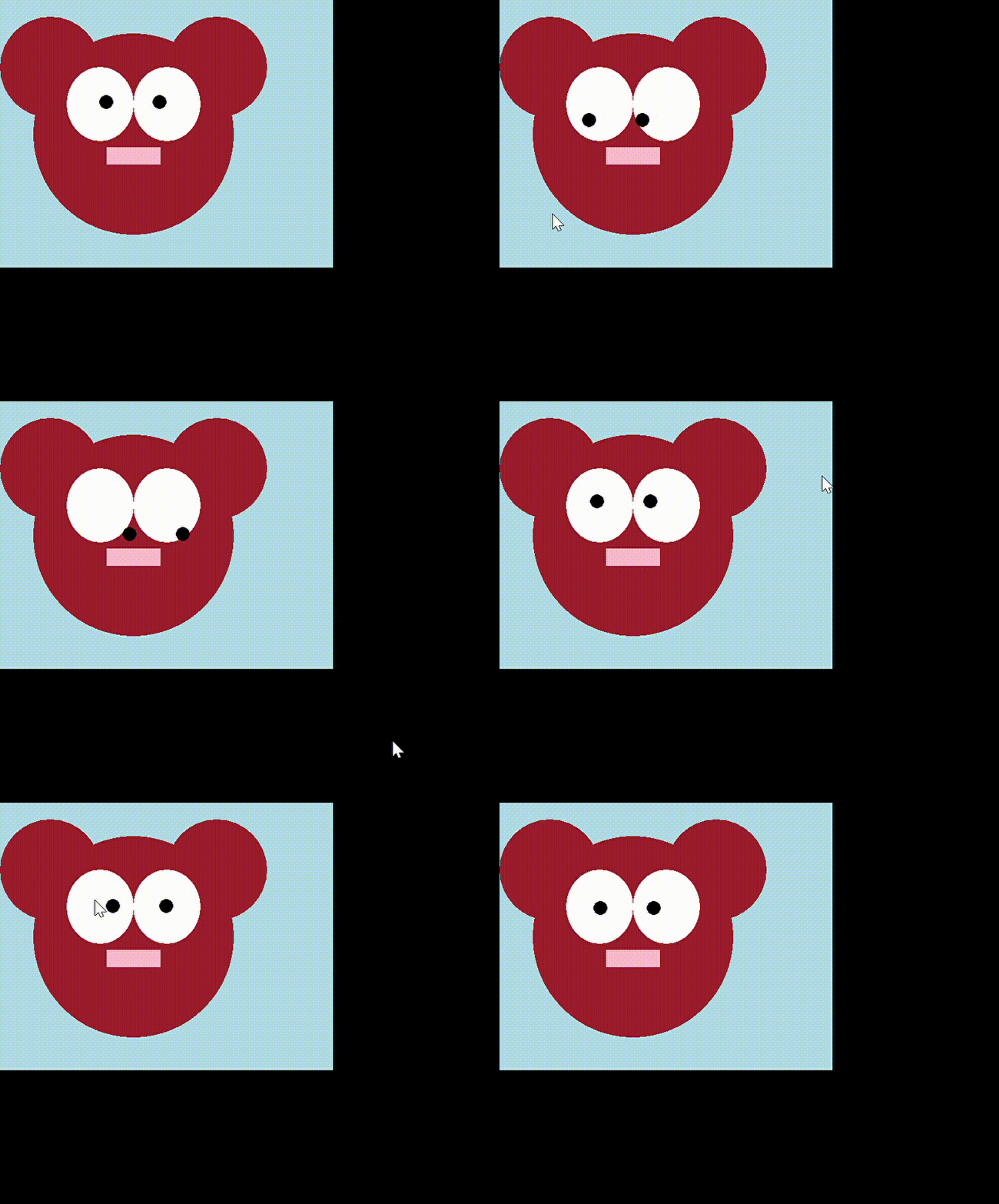
- Start by drawing the bear in one position (no animation). The bear consists of the following shapes:
- The head - located 50 from the top, 50 from the left, with a width and height of 300.
- The ears - both are 150 tall and wide and located 25 from the top. The left ear is on the left side of the screen, thr right is 250 from the left screen edge.
- The nose - located 160 from the left, 220 from the top, 80 wide and 25 tall.
- The whites of the eyes - both are located 100 from the top and are 100 wide and 110 tall. The left eye is 100 from the left side. The left side of the right eye starts where the right edge of the left eye finishes.
- The eyeballs are 20 wide and 20 tall and located 150 from the top. The left one is 140 from the left edge and the right one is 240 from the rigth edge.
- Once the bear looks correct at one position, try adding the mouse x position to the eyeball x coordinate and the mouse y position to the eyeball y coordinate.
- If you add the mouse x, y location directly to the coordinates of a shape, that shape will move too much. To make the movement smaller, multiply the mouse position by a decimal between 0 and 1 (this gives us a percentage).
- You may notice that now your eyeballs only move right, they never move left and down from where they start. This is because the mouse position will always be a positive number so it will always increase the position. To allow the eyeballs to move left or right of their initial position, subtract the initial position from the mouse coordinate before multiplying. For example, if a shape were initially drawn at an
xof156on adrawing_panelstored in a variable namedpanel, you should change this to156 + (panel.get_mouse_x() - 156) * 0.2
- Start by drawing the bear in one position (no animation). The bear consists of the following shapes: