
CS 115: Introduction to Programming, Autumn 2021
Instructors: Allison Obourn (allison.obourn)
(Last updated September 19, 2021)
Course Software
You will need to download and install Python for this course.
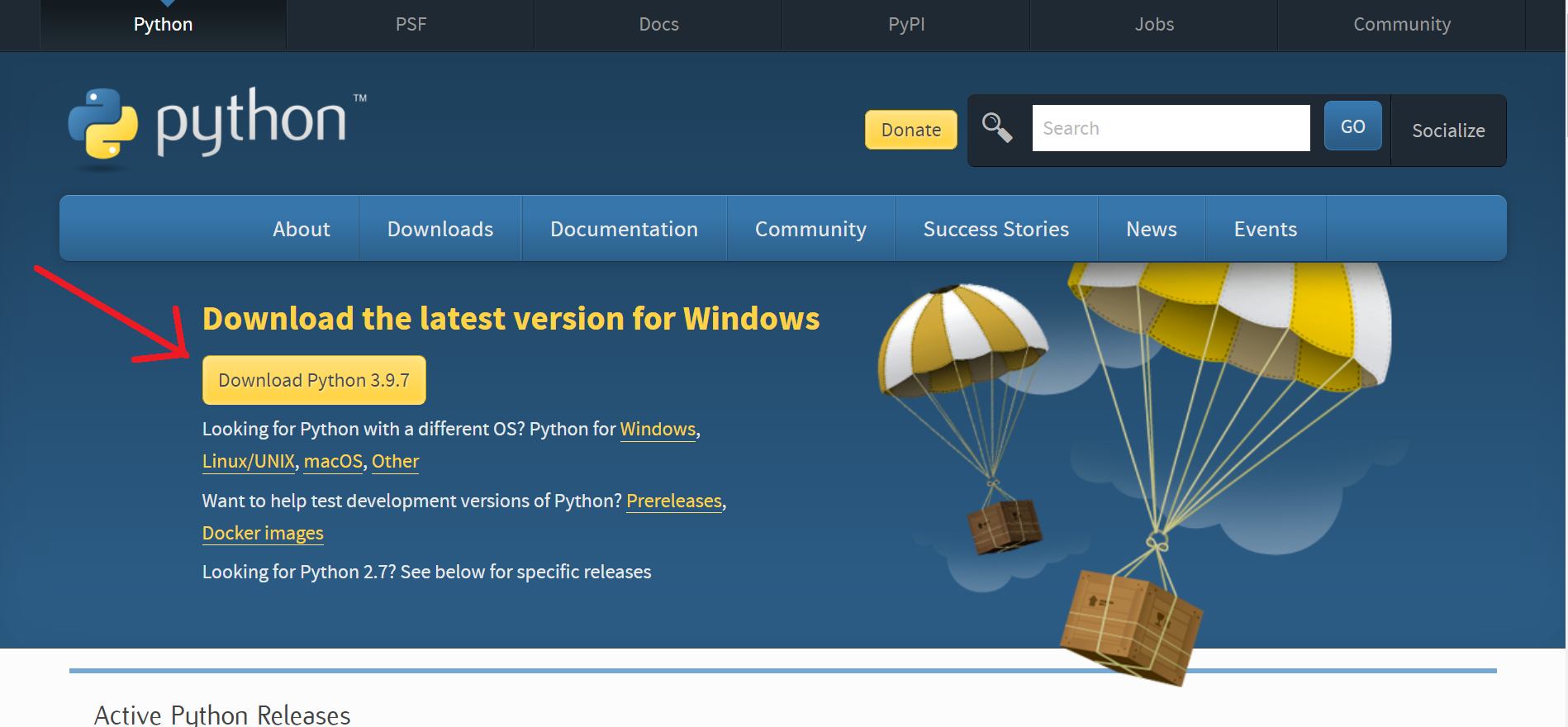
Download Python at https://www.python.org/downloads/ by clicking the yellow "Download Python 3.9.7" button.
Once the installer downloads, double click on it to start the installation. When the installer starts you will see a window that looks like this:
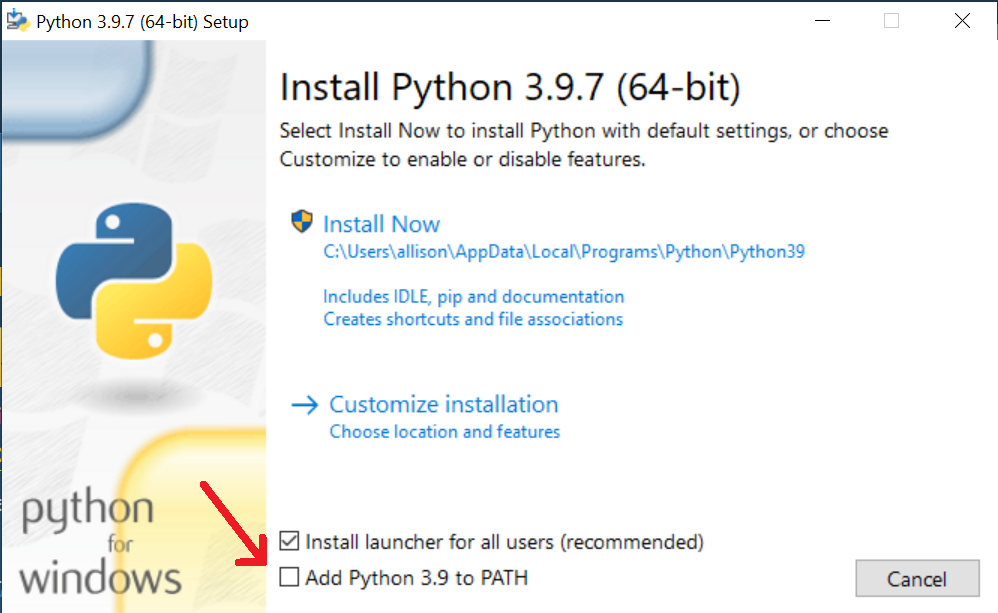
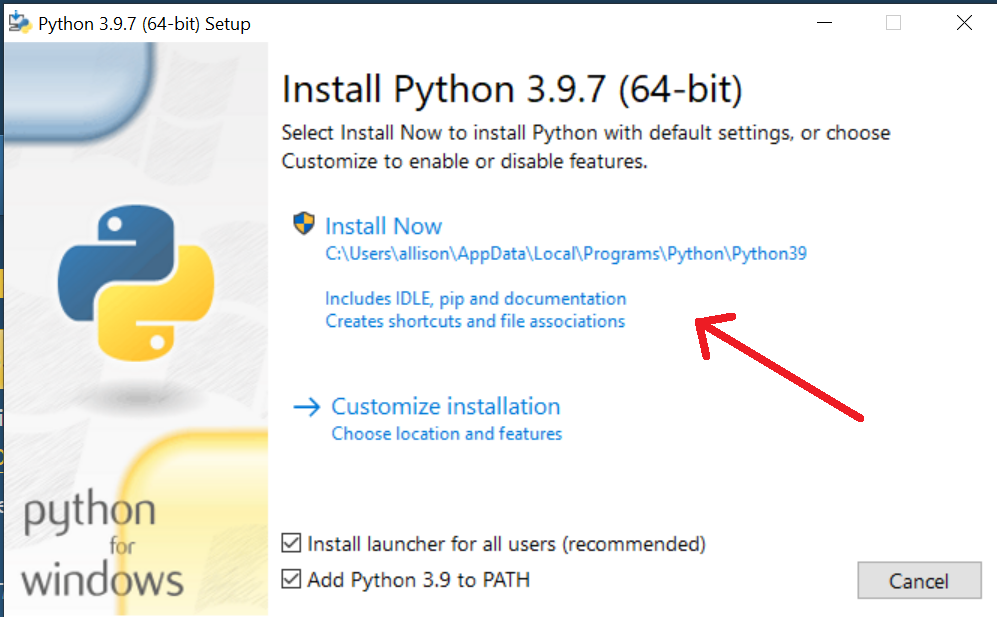
Make sure that you check the "Add Python 3.9 to PATH" box (see red arrow in above screenshot). Then click the "Install Now" text pointed to by the red arrow in the screenshot below.
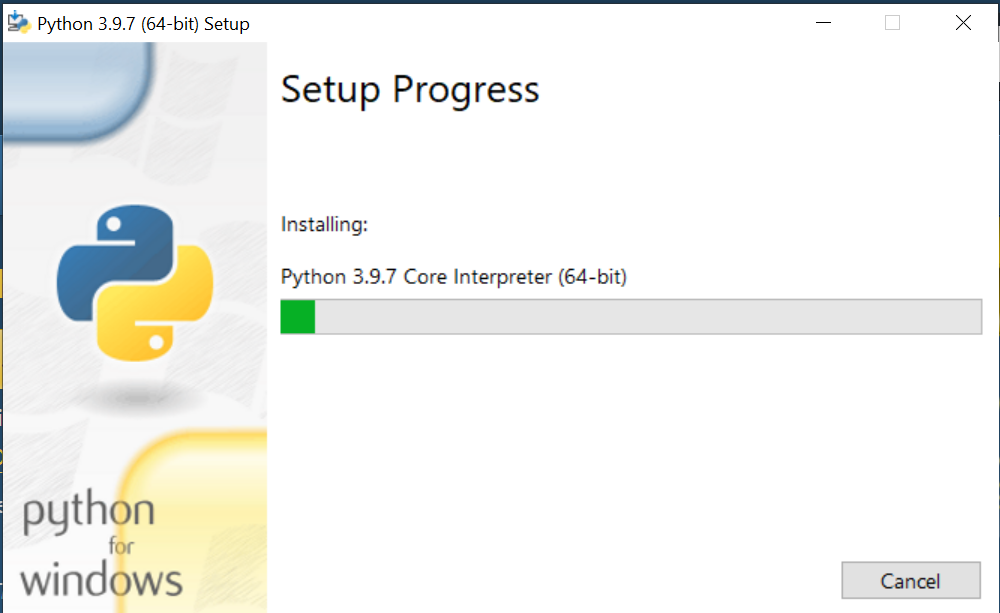
You should now see a progress bar while Python installs as in the screenshot below. Note that the title will change as the installation process progresses.
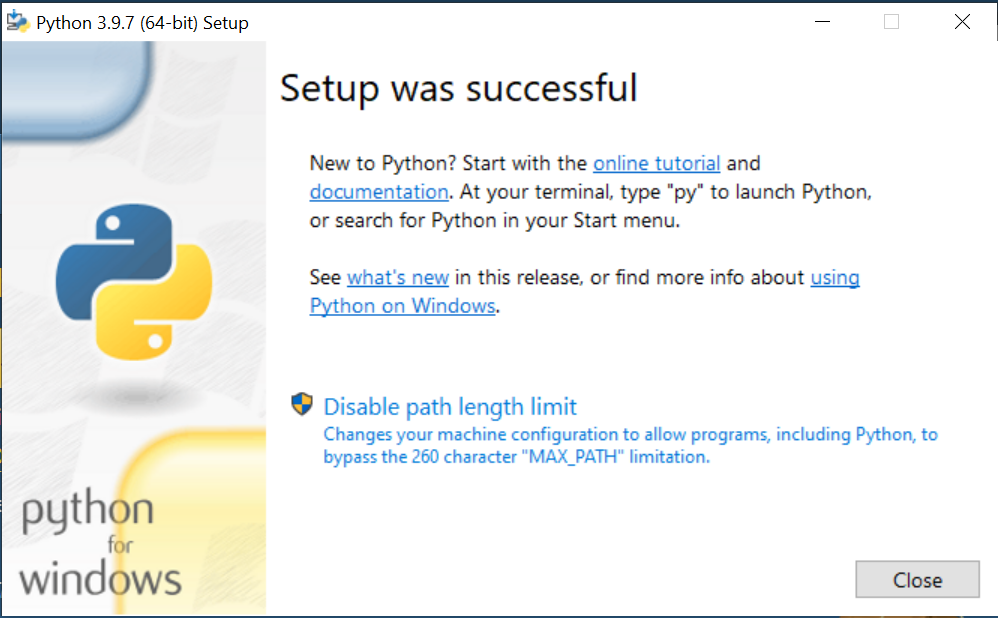
Once your installation is finished you should see a success message as shown in the screenshot below.
You can now access Python by opening the default editor installed with Python called IDLE. You can find it where you find all of your other programs. You can see what this looks like on Windows in the screenshot below. Note that if you are on a Mac or Linux your programs will be displayed differently.
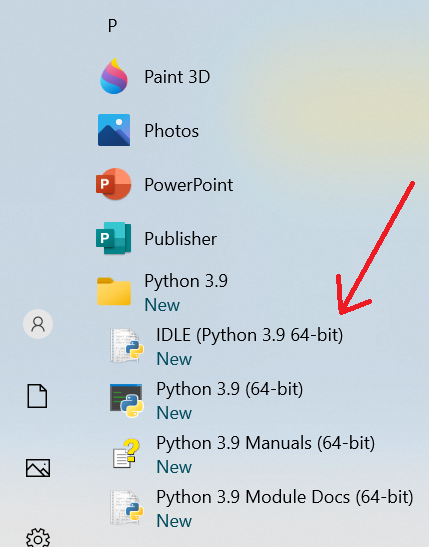
Beware that even though you now have a program called "Python" this is not the program you should run to write your programs. We will start programming using IDLE and as we progress throughout the course we will move to a more advanced editor, IntelliJ.